Fetching Data using OpenWeather API and JavaScript.

Languages, Modules and Packages that we would be using
HTML (Hyper-Text Markup Language)
Javascript (ECMA6)
Node.js
Nodemon (for Live Server Local Host)
OpenWeather API
Express
HTTPS
Body-Parser
Command Line
Let's Begin
Before writing any line of code, we need to make some preparations. Open your Command Line interface and change your directory to Desktop then make a new Folder and in that folder make two file types with the names index.html and server.js.
cd onedrive/Desktop
mkdir WeatherAPP
cd WeatherAPP
touch index.html server.js
After this, we need to initialize our node package and install some of the modules. For that :
npm init node // this will initialize node module in our directory
npm install express // to install express package
npm install body-parser // to install body-parser module
npm install -g nodemon // to install nodemon globally
Now we can move our cmd line aside and focus on our project.
Let's start by opening our index.html in a code editor
Once opened, we need to add an HTML boilerplate by typing the exclamation point and selecting the boilerplate code.
Navigate to the <body> "your code will go here"</body> tag and start setting our project up
<body>
  <form action ="/" method = "post">
     <label for="cityname">Enter City Name :</label>
     <input type="text" name ="cityname">
     <button type="submit">Proceed!</button>
  </form>
</body>
We are done with our HTML file.
Now for our JavaScript file
firstly, we will initialize some of the modules which we downloaded using the CMD line
const express = require("express");
const https = require("https");
const bodyparser = require("body-parser");

const app = express();
app.use(bodyparser.urlencoded({extended:true});
we will be using the express npm methods to move forward with this.
app.listen(3000, function(){ // starting a server and listening to it on LocalHost:3000;
console.log("server is online"}; //Logging the text once the server is online
)

app.get("/",function(req,res){ //get method is used to handle the get request
res.sendFile(__dirname + "index.html")} // this will send our index.html file  whenever the user types of homepage address
)

app.post("/",function(req,res){ //post method is used to handle the post(could be considered as a get request);
const URL; //your API endpoint
const cityname = req.body.cityname; //by using body-parser, we are requesting the value that the user typed in text-input and storing it in cityname const.
    https.get(URL,function(response){//https.get method is used to send a and HTTPS get request.
      response.on("data",function(chunk){//after getting the response back .on method is used to listen when an action triggers an event.
        const ParsedJSONData = JSON.parse(chunk)//using JSON.parse method allows us to parse the hexadecimal response that we got from .on request into a JSON format.
        const temperature = ParsedJSONData.main.temp;//in here we are storing the value of temp(refer to the API documentation) into a temperature variable.
          res.send(`The temperature in ${cityname} is ${weather}`);//by using res.send method we are send our reponse back for the viewer to see.
     });
  });
 });
And Voila, we are done
Open your browser and Navigate to LocalHost:3000 and see the fruits of your labor.
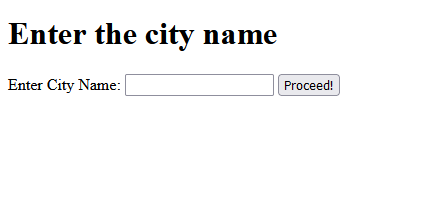
Enter any City name and click on Proceed!

That was a great read, wasn't it?